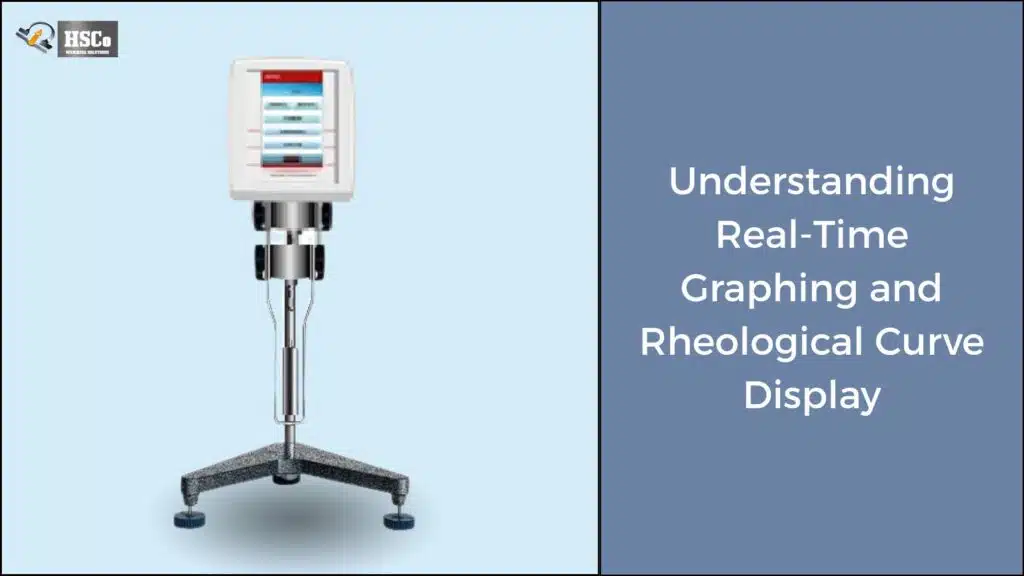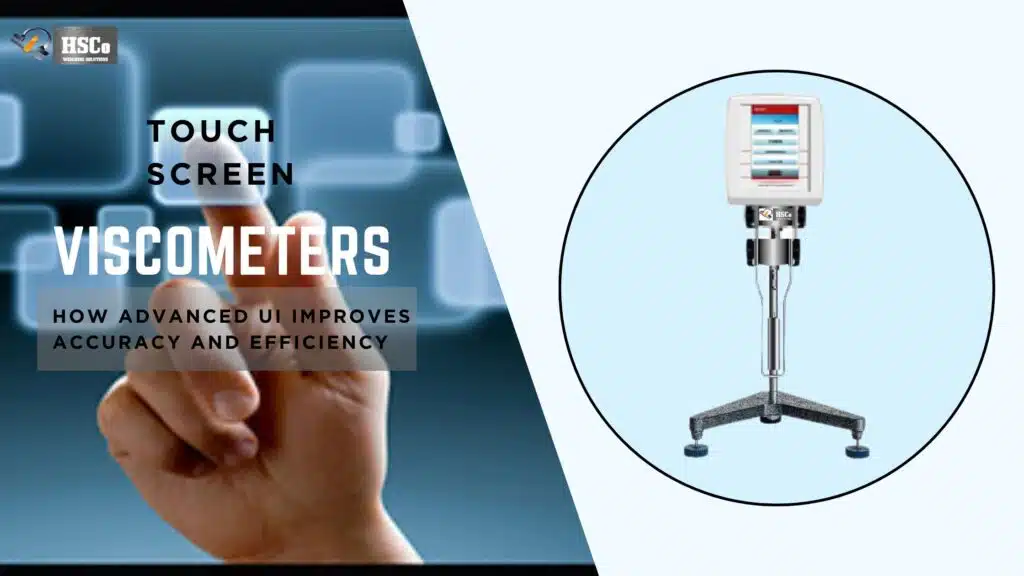


HSco Viscometers with touchscreens are made to make testing viscosity easier, faster, and more accurate. But like any other piece of lab equipment, they can sometimes break down, especially after being used every day for months. Your screen might stop responding, menus might freeze, or settings might not save the way they should.
Viscometer still giving trouble?
Compare HSCo's density and viscosity meters. For an existing instrument, send its model and the interface problem to the team for advice. See HSCo viscometers
Most problems with touchscreen interfaces are actually quite small and can be fixed without needing immediate technical support. This guide is meant for users who already own a touchscreen viscometer and want clear, practical solutions that actually work in real lab conditions.
Start with the Basics (It Fixes More Than You Think)
Before you think something is really wrong, take a moment to check the basics. A lot of problems with interfaces are caused by small mistakes.
First, always check:
- Is the viscometer turned on correctly?
- Are the cables and adapters plugged in tightly?
- Has the instrument been turned off and on again recently?
Many touchscreen systems can fix temporary problems by quickly restarting the power.
Touchscreen Not Working Properly
The screen doesn’t respond to touch
One of the most common complaints is that when you tap the screen, nothing happens or it takes a long time to respond.
First, try this:
- Use a cloth that doesn’t leave lint on the screen to clean it
- Take off your gloves and try with your bare fingers
- Don’t use sharp things or pens
Touchscreens are meant to be touched lightly and directly. Sensitivity can be affected by thick gloves or sample residue.
Screen Responds Incorrectly
If you tap and the wrong menu opens, you may need to calibrate the screen.
What you should do:
- In settings, look for an option called “Touch Calibration.”
- Carefully follow the steps on the screen
- Restart the device after saving the settings
Regular calibration makes sure the interface stays accurate over time.
Menus that don’t respond or screens that freeze
It can be very annoying when the interface freezes, especially during a test. Most of the time, this has to do with software.
What Causes Freezing Most of the Time?
- Doing too many things too quickly
- Long test sessions that don’t need to be restarted
- Changes in power
How to Fix It
- Give it 10 to 15 seconds to see if it gets better
- Safely restart the viscometer
- Don’t quickly press a lot of buttons after rebooting
It might be time to check for software updates if your computer freezes a lot.
Settings Not Saving After Tests
Setting up a test and then finding that everything has been reset is one of the most annoying things that can happen.
Some common reasons are:
- Not checking settings before leaving
- Power loss while saving
- Limitations on user access
Be sure to:
- After making changes, click “Save” or “Confirm.”
- Check the levels of user permissions
- Don’t turn off the device right after setting it up
Saved methods help keep things the same, but only if they are stored correctly.
Problems with the screen: dim, flickering, or blank
The screen is too dark or hard to read
Most of the time, this is a problem with the display or brightness settings.
Look at:
- System settings for screen brightness
- Lighting in the lab
- Options for screen contrast
When overhead lights shine on the screen, it can sometimes look dull when it isn’t.
Screen that flickers or goes blank
If the screen goes blank or flickers:
- Turn off the instrument right away
- Look at the adapter and power source
- After a few minutes, restart
If the problem keeps happening, you should call service support because it could be a hardware issue.
Graphs or data not showing up right
Touchscreen viscometers often show live graphs and data that has been logged. It can be hard to understand if these don’t show up right.
Causes that could be:
- Logging is not turned on
- You chose the wrong test method
- Almost full memory
What helps:
- Allow data logging in test settings
- Make sure the right type of graph is chosen
- If the storage is full, delete old data
Graphs depend on the right test setup; if you miss one option, they can be completely hidden.
Slow response or lag in the interface
If menus are slow or take a long time to load, it doesn’t always mean something is broken.
This can happen when:
- Memory is full of old information
- It’s been a while since the system was restarted
- There are a lot of background tasks going on
To fix it:
- Getting rid of old data and exporting it
- Restarting the device once a week
- Avoiding background tasks that aren’t needed
Keeping up with regular maintenance keeps the interface running smoothly.
You accidentally changed the language or display settings
It’s surprisingly simple to accidentally change the language or layout of the interface.
If the screen suddenly looks different:
- Find a gear icon (settings icon)
- Use icons instead of text to get around
- Change the display or language settings back to their defaults
Most viscometers let you reset the display settings to the factory defaults without changing the calibration.
When to Get Help from Tech Support

A lot of interface problems are easy to fix, but some need help from an expert.
If you need help, call support
- After restarting, the screen stays blank
- Touch input doesn’t work at all
- Errors keep happening when the computer starts up
- Even after resets, problems come back
Take pictures or write down the problem before you call. It will help you fix it faster.
How to Avoid Interface Issues in the Future
A few good habits can help a lot.
Try to:
- Keep the touchscreen clean all the time
- Every week, restart the viscometer
- Don’t let things spill near the display
- Teach users how to use it correctly
Most problems with interfaces are caused by wear, not failure.
Conclusion
Problems with the touchscreen viscometer interface can be annoying, but they aren’t usually serious. Most of the problems, like screens that don’t respond or graphs that aren’t there, have easy, practical solutions. You can avoid downtime and stay on track with testing by knowing how the interface works and taking care of it.
If you know how to fix things, your touchscreen viscometer can stay just as reliable as it was when you first put it in.
FAQs
1. Why isn’t my touchscreen viscometer working when I touch it?
Dirty screens, wearing gloves, or problems with calibration are the most common causes of this. Cleaning and recalibrating usually fix it.
2. Is it possible to lose data when you restart the viscometer?
It’s safe to restart, but you should always save test data before turning off.
3. How often should I calibrate the touchscreen?
Only when touch accuracy doesn’t seem right or after software updates.
4. What should I do if my test screen freezes?
If you need to, wait a moment and then restart. Don’t stop tests too often.
5. Do warranty terms cover problems with the interface?
Most manufacturers’ standard warranties cover problems with displays and software. Check your terms.