
WeighDisplay Pro: Weighing Scale Software for a Windows PC
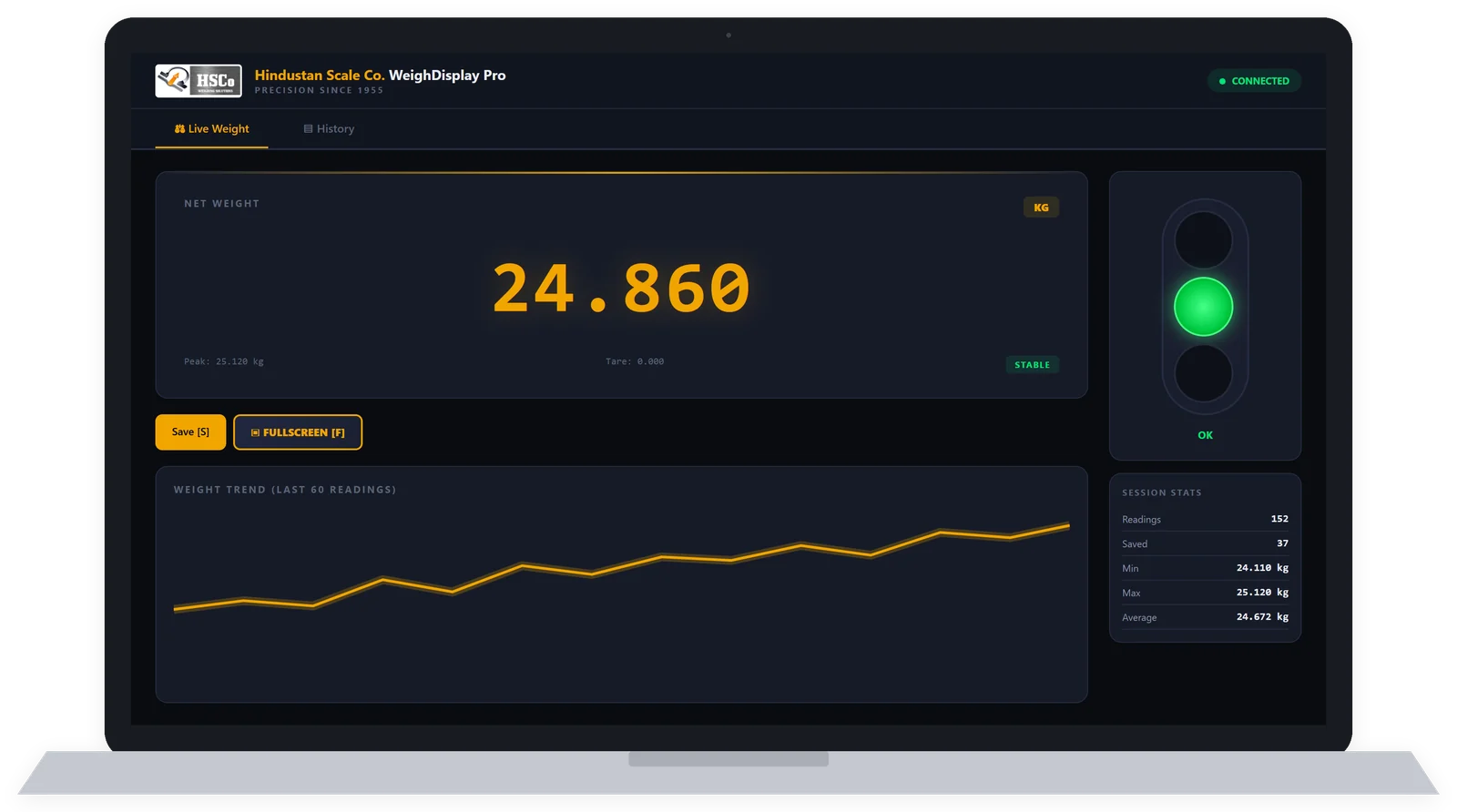
WeighDisplay Pro connects your weighing scale to a Windows PC by an RS232 or USB cable. It shows the live weight in large digits, checks it against limits you set and lets you save readings with the date and time. You can export the saved list to a file that opens in Excel.
It suits work where the scale stands beside a PC: weighing packs on a shop floor, checking goods at a store or dispatch counter, or recording readings in a lab. We set it up to match your scale, and it is already in use with our customers.
See the weight clearly and check each pack

Large digits on the PC screen
The weight comes up in large digits on the monitor, so the operator reads it there instead of from the small display on the scale.
A clear indication of under, within or over
Set a lower and an upper weight limit. The status light turns red when the reading is below the range, green when it is within it and orange when it is above it, so the operator sees pass or fail at a glance instead of checking each number against the limits. Green always means within the limits; the under and over colours can be changed if your floor uses a different code.
Full-screen weight for the shop floor
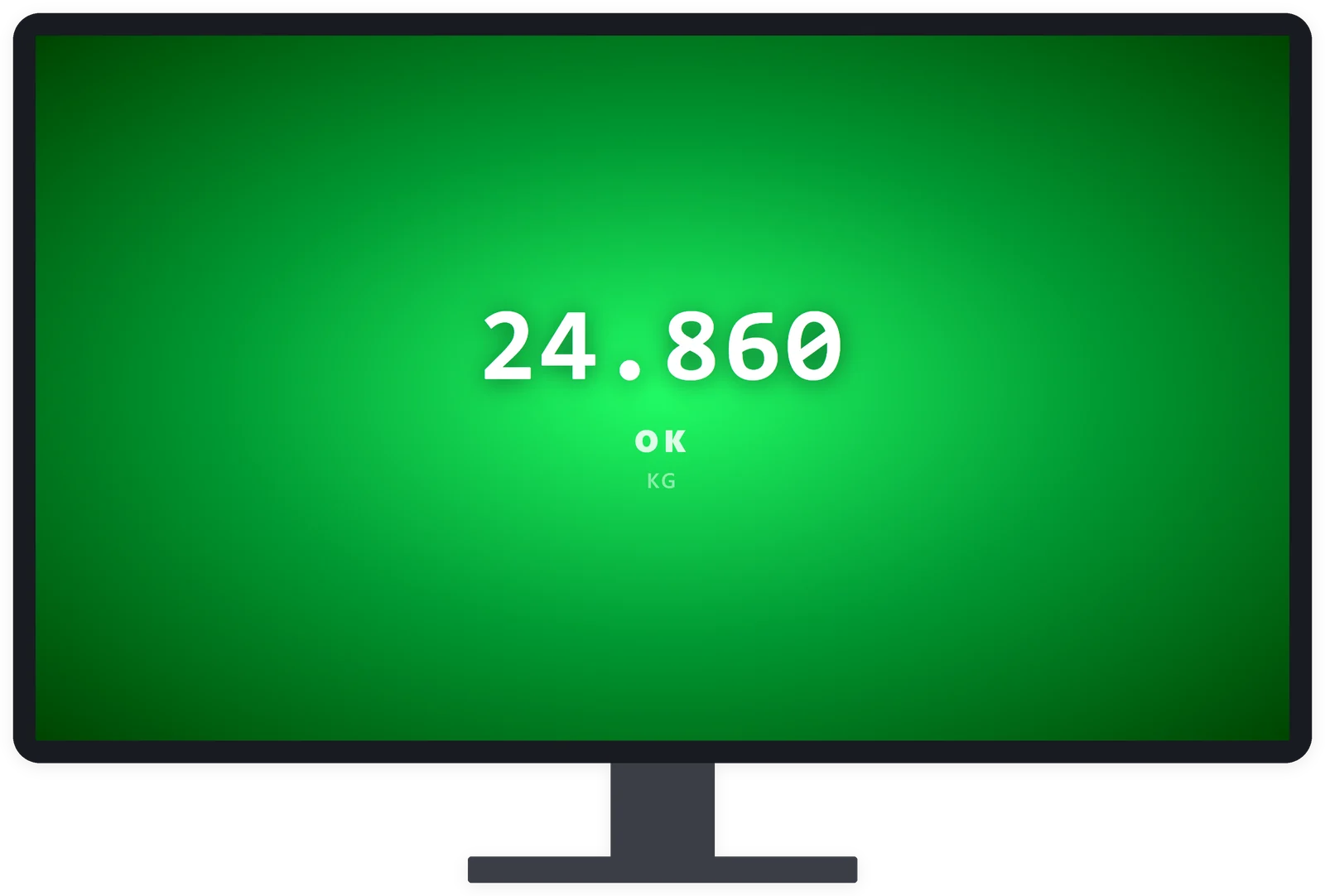
Full-screen mode turns the PC monitor into a large weight display. This is useful when people need to read the weight from across the floor.
You can also tare from the keyboard: set the reading to zero with an empty container on the scale before weighing its contents.
Save readings with date and time, then open them in Excel
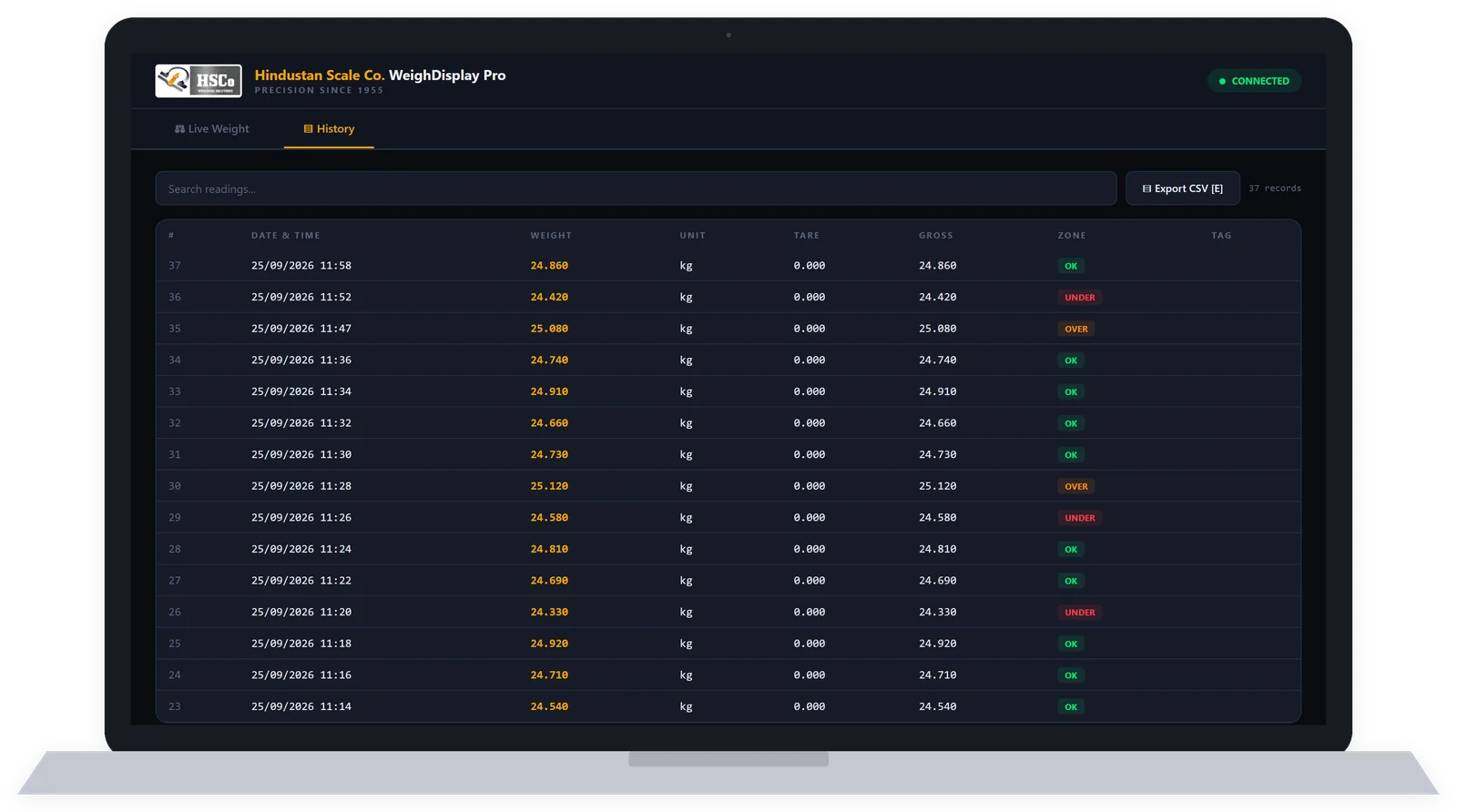
Press one key to save a reading. The saved readings list keeps the weight with its date and time and, when limits are set, whether it was under, within or over them. You can see afterwards which packs failed, and you have a record instead of a handwritten note.
Export the list as a CSV file (a spreadsheet file that opens in Excel). The day’s readings can then be used in your billing or stock sheet without retyping each weight from the scale display.
If you need the weight to go directly into Tally, SAP or another business system, see our weight-to-billing and ERP integration page. We have connected scales to Tally, SAP and other major ERP and accounting software. Tell us which system you use and which scale, and we will check that link for you.
How to connect your weighing scale to a computer
The scale needs a suitable RS232 or USB connection. RS232 is a serial cable connection used to send readings from the scale to the PC. We set the scale’s output and its speed (the baud rate) so the program reads your scale correctly.
An RS232 cable typically runs up to about 15 metres. Include the distance between your scale and PC when sending your requirements.
A scale you already use can often be connected. This includes our own scales and, in most cases, scales from another make. We need to check your particular scale before confirming compatibility.
- For an existing scale: send its model or a photo of its display, plus the port type if you know it.
- For a new scale: see our scale with an RS232 port or scale with a USB port.
- For an overview of connection options: see Connected Weighing Scales.
When a different option suits the job
- No PC near the scale: a Bluetooth weighing scale with a phone app is the more suitable option.
- Readings from several scales in one place: see our Wi-Fi scales and cloud dashboard, which can show several scales on one screen.
- Only a large display is needed, without a PC: see the separate jumbo display for weighing scales.
Our other weighing programs and apps are in the weighing software overview.
Arrange a live demo or request a quotation
Each copy is set up and licensed for your scale, so instead of a download to try, we show it to you working in a live demo. Price on request.
WhatsApp +91-7045922250 for a live WeighDisplay Pro demo or a quotation. Send:
- Your scale’s model or a photo of its display.
- Its port type, if known: RS232 or USB.
- What you want on the screen, such as weight limits or a full-screen display.
- Where the readings need to go: Excel, a billing sheet or a stock sheet.
- The distance between the scale and PC.
You can also call +91-7045922250 with these details, or email them to hsc@hindustanscale.com. We will check the connection and set the program up to match your scale.